DAW manual · Bitwig · Views
10 Mixer view
Balance a song without reaching for the mouse. The four faders set four track volumes at a time, the knobs pan and send, and the pads mute, solo and arm, while the screen shows eight tracks with their levels.
Download the Bitwig PDF PDF, 0.5 MB
Getting there
Tap SEQ. The views turn in a ring: Device → Mixer → Overview → Device. The SEQ button is lit in every view except Device, so you can tell at a glance that you are away from the sound controls. The status bar reads Tracks 1-8 (the eight tracks the screen shows).
SEQ does something else? In the script preferences, SEQ button is set to Firmware sequencer. Set it back to Screen views (see Script preferences).
What the screen shows
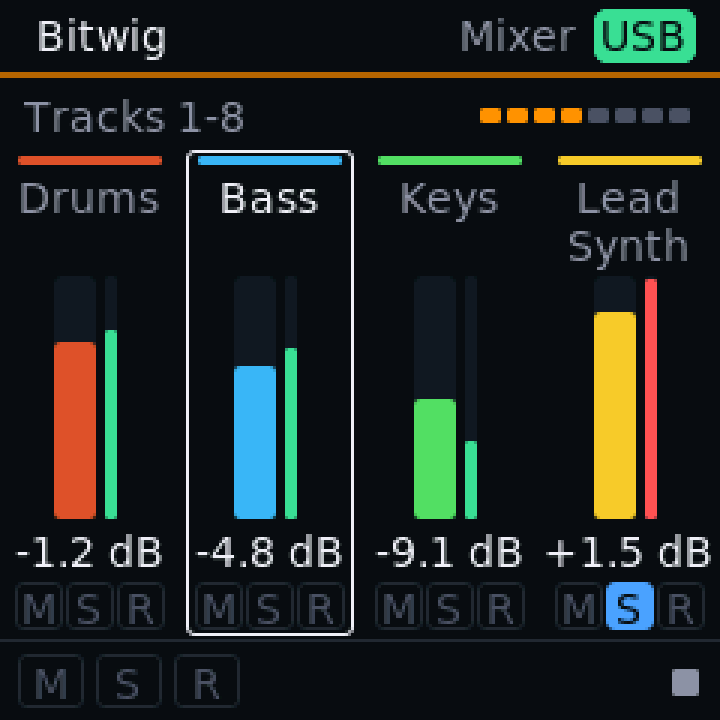
Each strip, top to bottom:
- Colour line and name: the track's colour in Bitwig and as many letters of its name as fit.
- Volume bar in the track's colour. A muted track's bar turns grey.
- Level meter beside it: green, red near clipping. It moves while Bitwig plays.
- Three small squares: mute (yellow), solo (the accent colour), arm (red). A square is lit while that switch is on.
- F1-F4 under the four strips the faders move, underlined in the accent colour.
The selected track is framed in the accent colour. Its name and volume are written along the bottom ("Bass -4.8 dB").
The controls
| Control | In the Mixer view |
|---|---|
| Faders 1-4 | Volume of the strips marked F1-F4 |
| Left / Right | Move the faders to the other four strips; past the edge, to the next or previous eight tracks |
| Oct- + Left / Right | Jump eight tracks back or forward (the faders stay on the same strips) |
| K1-K8 | Pan of strips 1-8 |
| K9-K16 (Knob Bank B) | Send 1 of strips 1-8 |
| Oct- or Shift pad held while turning | Fine steps |
| Fader Bank B | The selected track's Volume, Pan, Send 1, Send 2 (in every view) |
The screen does not draw pan or send values. Watch Bitwig's mixer while you set them.
Soft takeover: why a fader sometimes does nothing
A fader never makes a volume jump. When its position doesn't match the track's volume, it waits until you move it past that volume, and then it takes over. While it waits, its label shows which way to go:
- F2^: move fader 2 up.
- F2v: move fader 2 down.
You will see this after Left / Right (the four faders now face new tracks), and after Bitwig moved a volume itself (automation, the mouse). In the other views a fader move shows a short message instead, such as "Bass: -4.8 dB (move up)".
If you would rather have the volume jump to the fader at once, set Fader pick-up to Jump in the script preferences.
Mute, solo and arm from the pads
The pads of pad bank B control tracks in every view, so you can use them in the Mixer. Press Knob Bank and Fader Bank together to switch the pads to bank B. Bank A keeps playing notes.
- Top row (pads 1-8): select the track. Each pad is lit in its track's colour, and the selected one is brightest.
- Bottom row (pads 9-16): one action for the same eight tracks: Mute (yellow), Solo (blue), Arm (red), Stop (grey, pulses while a clip plays) or Launch (the clip's colour).
To choose the bottom row's action, hold Oct- or the Shift pad and tap one of pads 9-13 (Mute, Solo, Arm, Stop, Launch). While the Shift pad is held, the bottom row lights up as that choice; holding Oct- does not light it.
A mixing pass
- Tap SEQ until the status bar reads Tracks 1-8.
- Start playback with SEQ PLAY and pull faders 1-4 down to the lowest track label. Each fader picks up its track as it passes the volume (the ^ / v mark goes away).
- Set the balance of tracks 1-4, press Right, and set tracks 5-8.
- Turn K1-K8 to place the tracks in the stereo field. Switch Knob Bank to B and use K9-K16 to send tracks to your reverb on send 1.
- Pick the bottom-row action Solo (hold Oct-, tap pad 10) and solo tracks to check them one at a time.
- Select the track you are fine-tuning with its top-row pad and switch Fader Bank to B. Faders 1-4 now set its volume, pan, send 1 and send 2.
Good to know
- The keyboard's own pages (Globe settings, SCALE, ARP, CHORD lists) take the knobs and Left / Right while they are open. The faders keep controlling the mixer.
- The meters update about ten times a second, enough to see levels but not a precise peak meter.
- The view needs the DAW or DAW BT build. Other Oscuro builds keep the knob cells on the screen while the script still drives the same controls.